Settings
Settings has six tabs. Most need the admin role.
Organisation
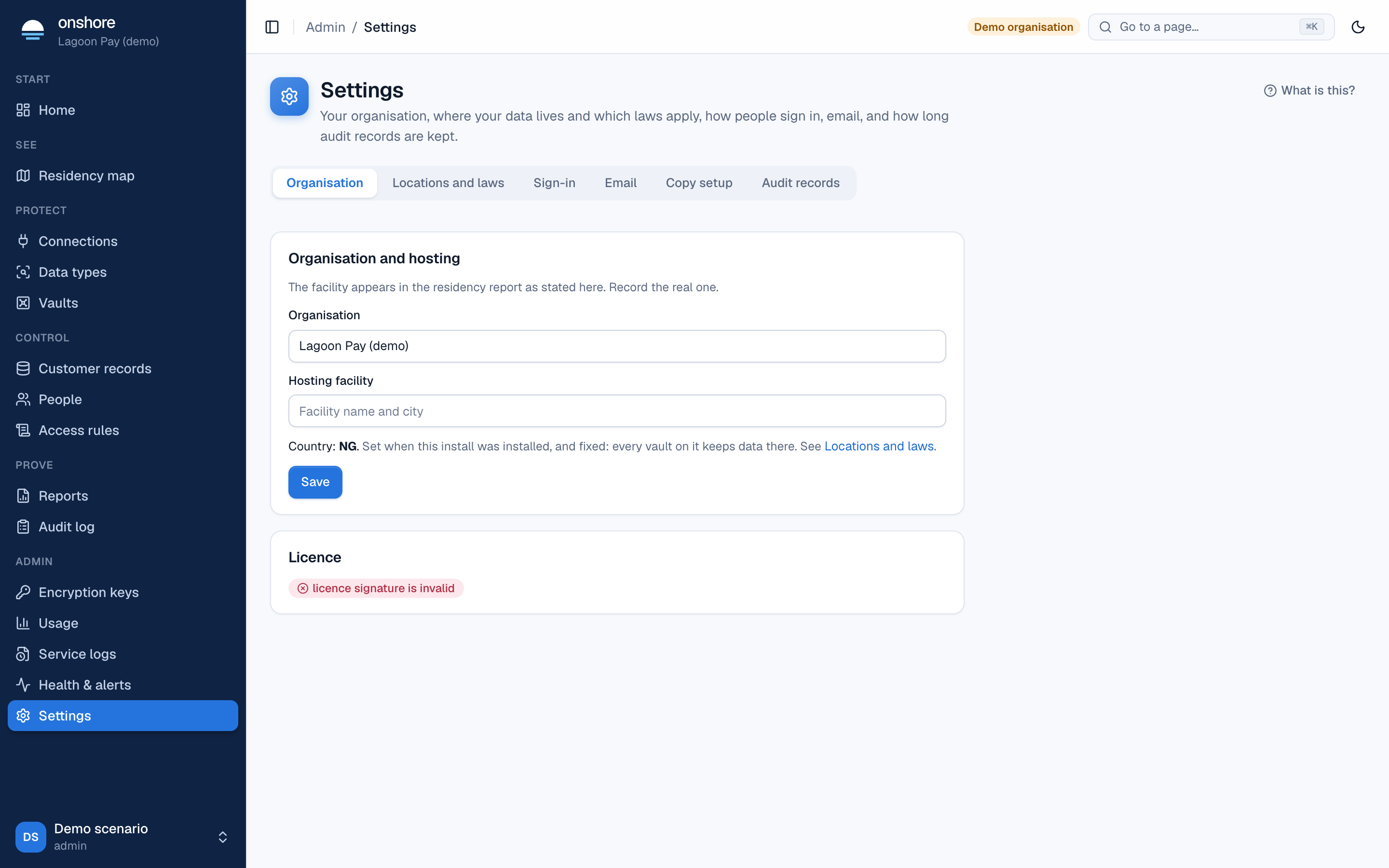
- Organisation name, and hosting facility (the facility name and city, as it should appear in the residency report; record the real one).
- Country: set when the install was installed, and fixed.
- Licence: customer, expiry and validity. An expired licence keeps the product running; upgrades stop.
Locations and laws
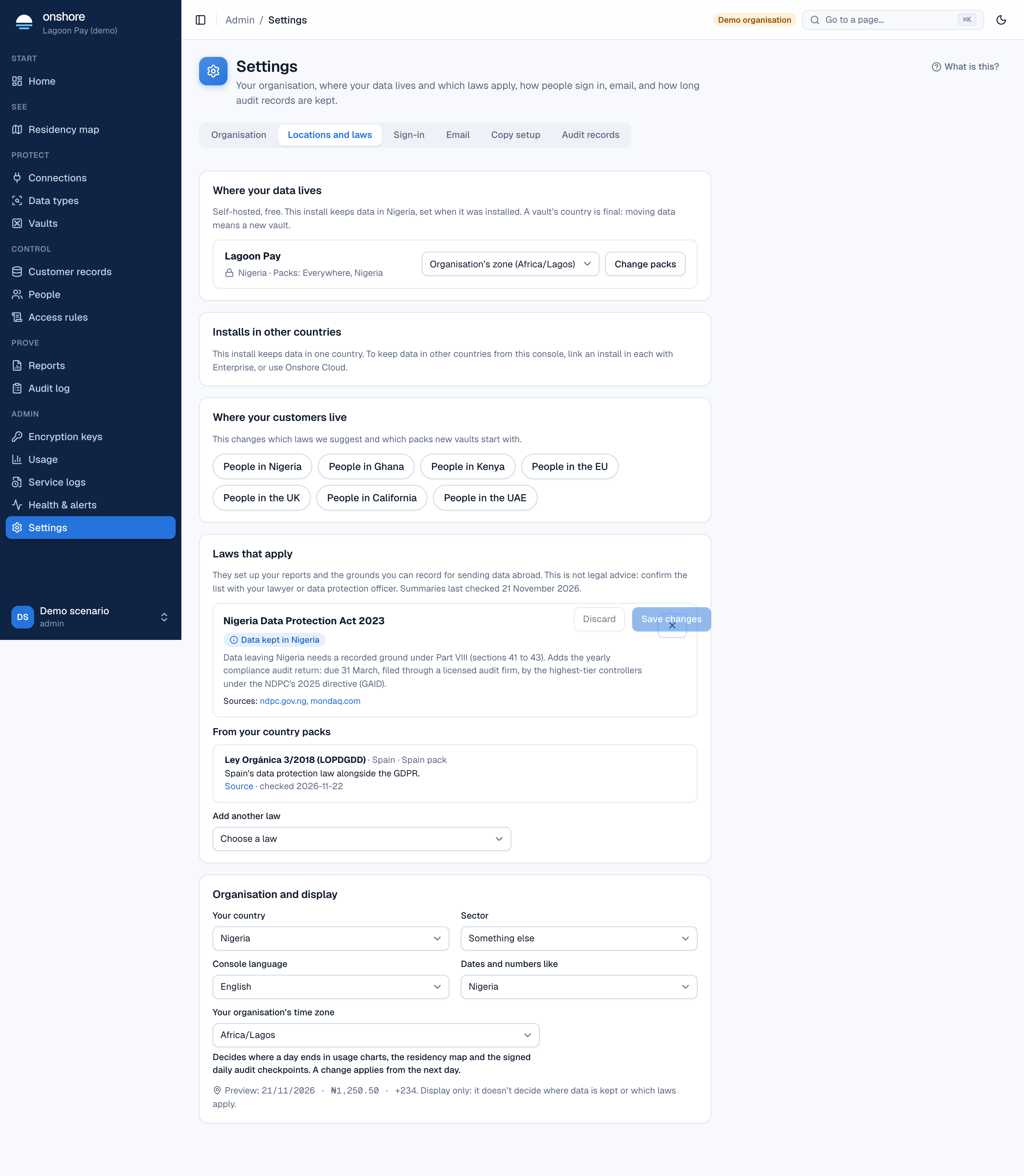
Where your data lives
Each vault’s country (fixed), its country packs and its time zone (inherits your organisation’s unless set). Add or remove country packs for a vault. With Enterprise or Cloud, this tab also shows linked installs and Cloud regions.
Where your customers live
The places your customers live, which suggest extra laws and packs.
Laws that apply
Each law with why it’s suggested, a summary, its source and when it was last checked. Remove one, or Add another law. Laws from your own country packs are listed under From your country packs.
Organisation and display
Your country, sector, console language (English or French), how dates and numbers look, and your organisation’s time zone. The time zone decides where a day ends for usage, reports and the map, and office-hours access rules.
Select Save to apply, or Discard.
Sign-in
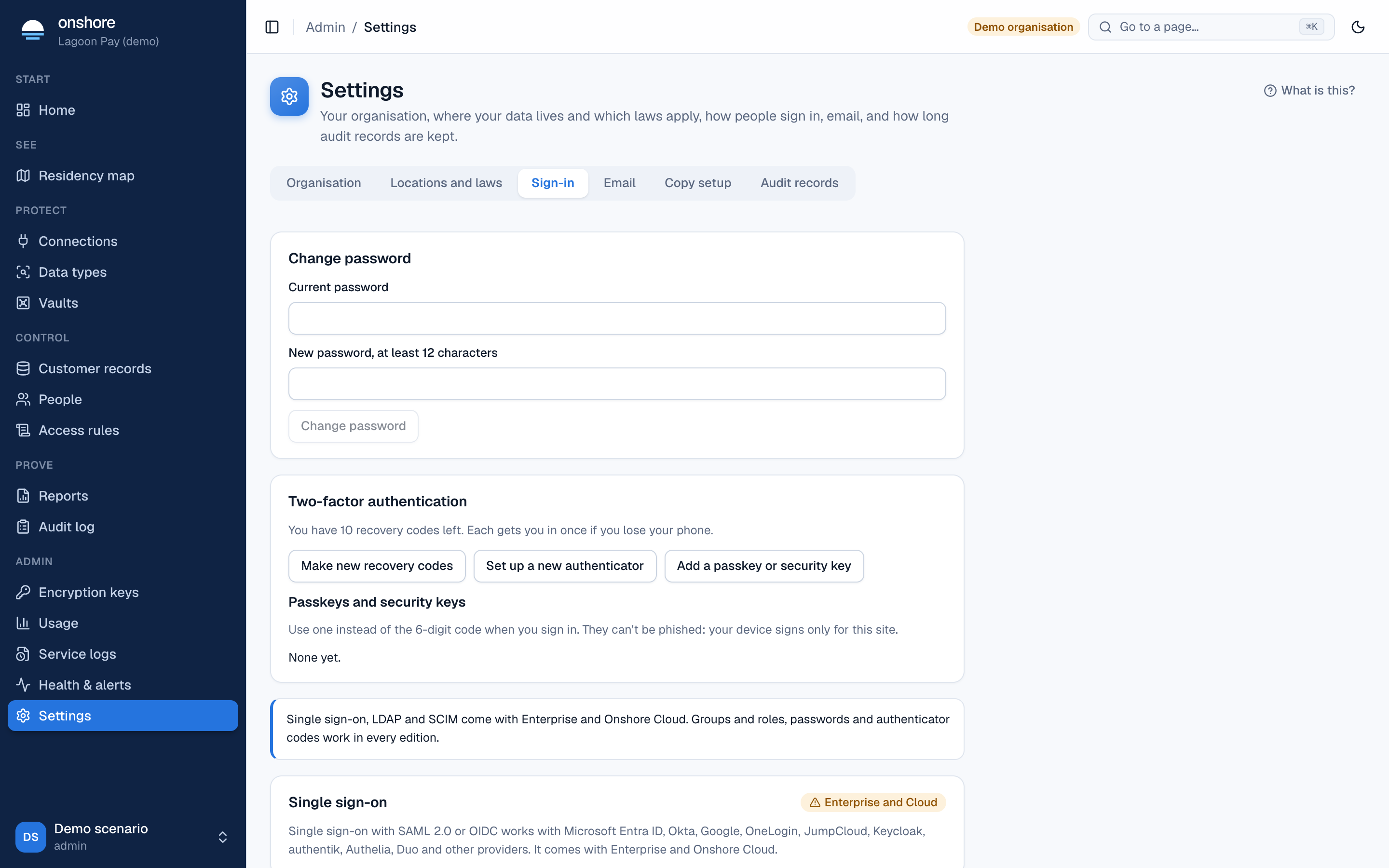
- Change password (signs you out everywhere).
- Two-factor authentication: make new recovery codes, set up a new authenticator, and add or remove passkeys and security keys. See Two-factor and passkeys.
- For admins: single sign-on, groups and roles, directory sync (SCIM) and LDAP directory. See Sign-in and identity.
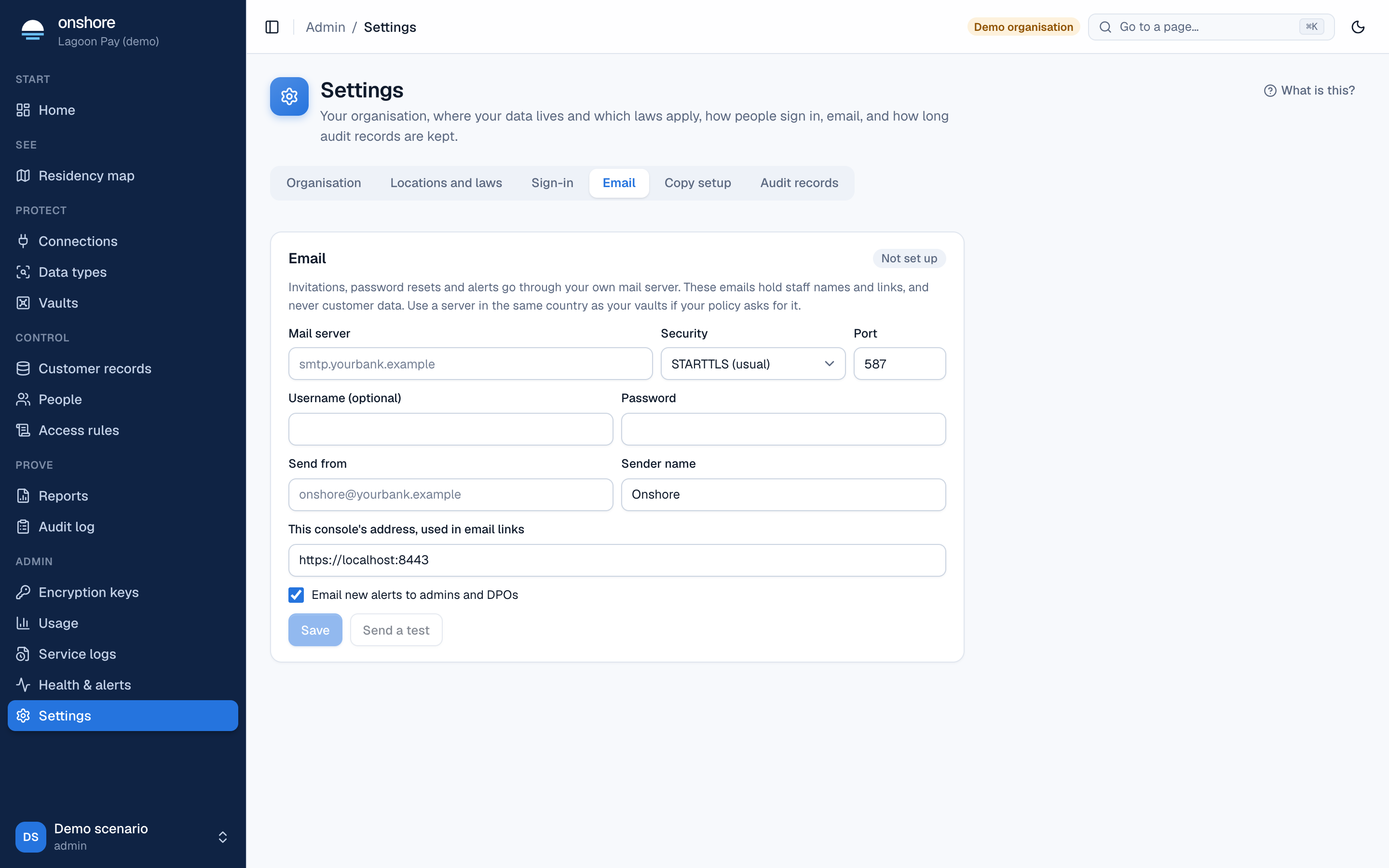
Onshore sends email through your own mail server; there is no Onshore mail service. It sends invitations, password resets, notices about account changes and alert digests. They hold staff names and links, never customer data.
Enter the mail server and port, the security (STARTTLS, usual; TLS from the start; or none, for an internal relay only), an optional username and password, the send from address and sender name, and this console’s address (used in email links). Optionally tick Email new alerts to admins and DPOs. Select Save, then Send a test. A password is refused without a secure connection. The mail server may be private, but can’t be on Onshore’s own networks.
Copy setup
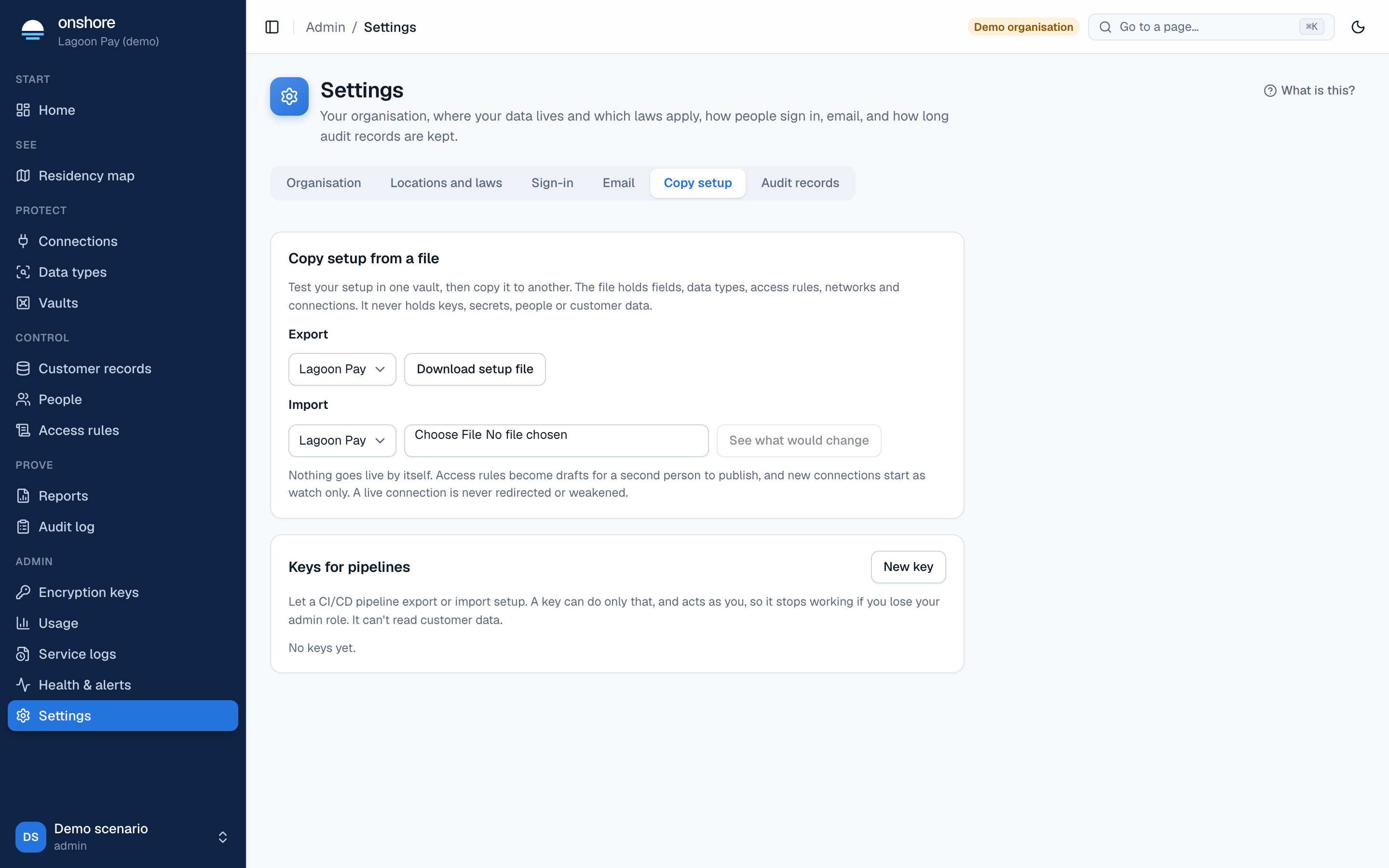
Move your setup from a test install to a live one, or between linked installs: fields, your own data types, access rules, approved networks and connections. It never holds keys, secrets, people or customer data.
Export
Under Export, choose the vault to export and select Download setup file.
Import, as a dry run
On the other install, under Import, choose the vault to import into and the setup file, and select See what would change. Nothing is applied yet; each item shows its result, and anything it won’t touch is marked Won’t change.
Apply
Importing is deliberately cautious:
- Access rules and data types arrive as drafts; a second person publishes them.
- New connections start as watch only, with new keys.
- A live connection is never redirected, switched to another mode or weakened.
- A field’s token type never changes.
- Nothing is ever deleted.
Keys for pipelines lets a CI pipeline do this: select New key, choose what it can do and when it expires (30 days, 90 days or a year). The key is shown once, acts as the admin who made it, and stops working if that person loses the role. See Control API.
Audit records
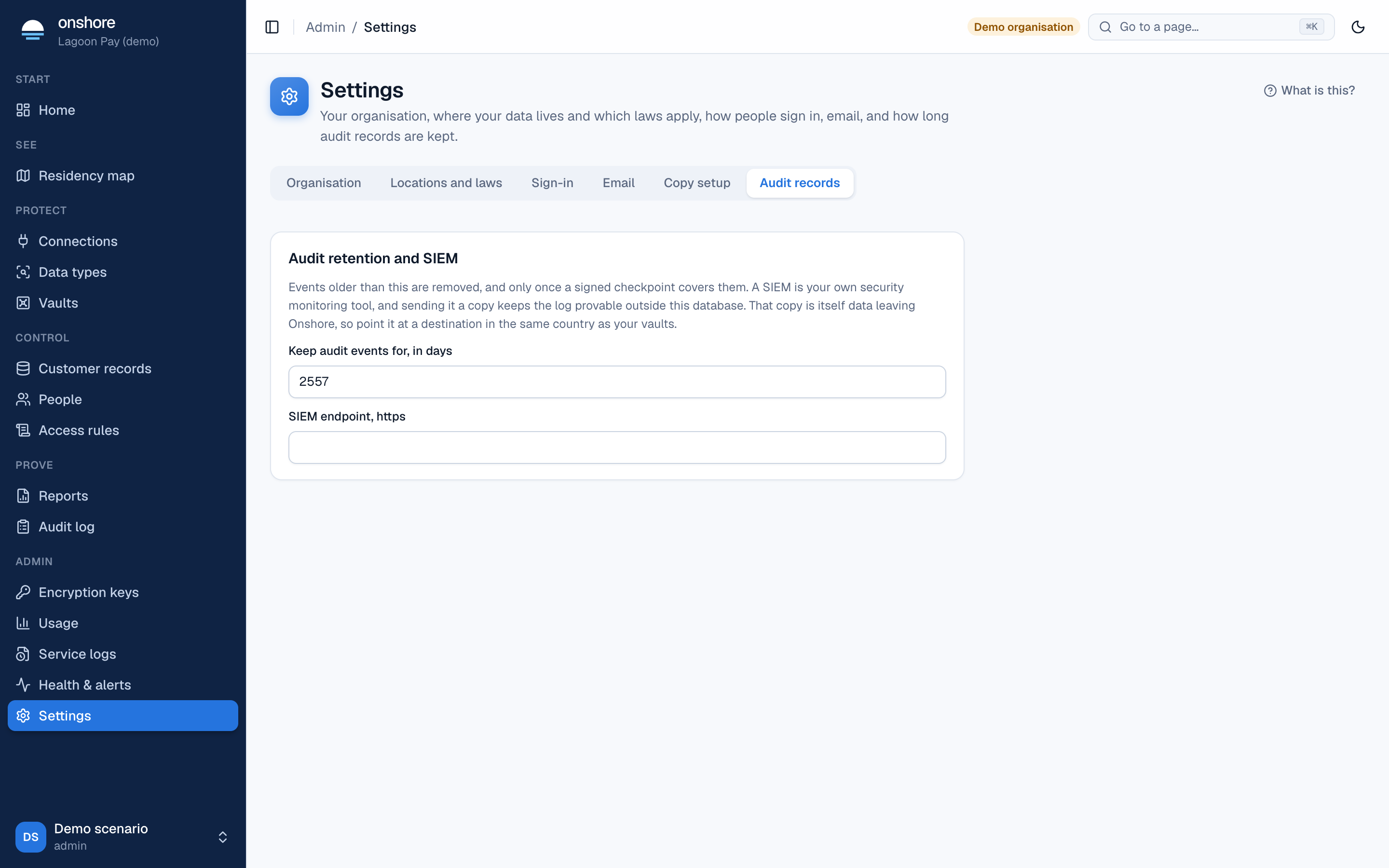
- Keep audit events for, in days (at least 365; seven years by default).
- SIEM endpoint: an
httpsaddress to send a copy of every audit event to. A signing secret is shown once; each batch carriesX-RV-Signature: sha256=…over its body.
A SIEM copy is itself data leaving Onshore. Point it at a destination in the same country as your vaults.