Access rules
Nobody sees a real value until a published rule says so. If several rules match, the strictest one wins. Access rules are where you decide who sees what.
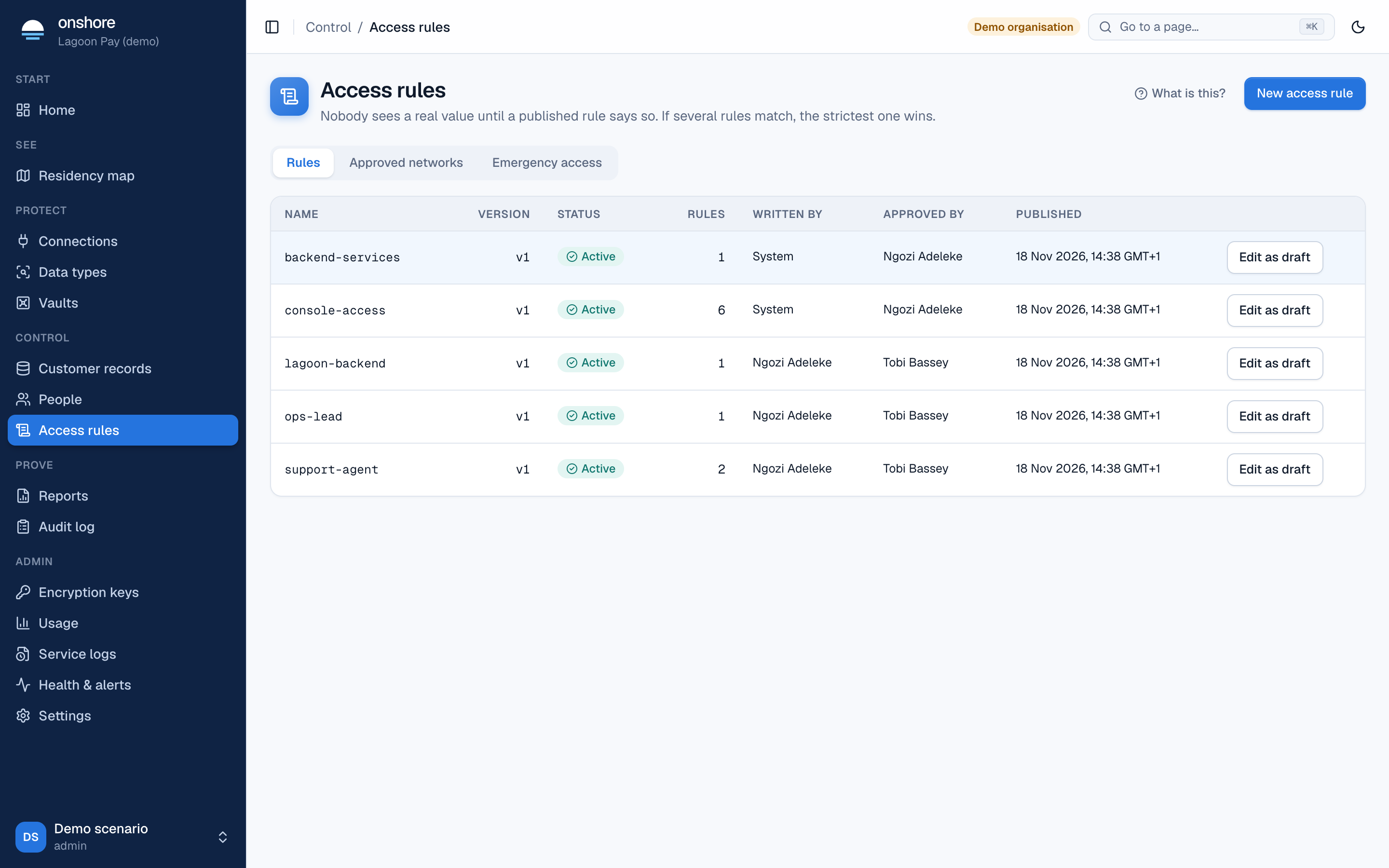
The page has three tabs: Rules, Approved networks and Emergency access.
How a rule works
A policy (shown in the table) holds one or more rules. Each rule has four parts:
| Part | Choose |
|---|---|
| Action | What it allows: detokenize (reveal), tokenize, insert, search, compare (yes-or-no checks), file_redact, export, delete |
| Who | Roles or named people. Optionally only from networks you’ve approved, and require MFA (multi-factor sign-in) |
| What | Data types, or field names. None means all fields |
| When | Purpose required: the person must give a reason. Office hours only: from and to hours, in your organisation’s time zone |
And what it returns for a reveal:
| Returns | The person gets |
|---|---|
| Plaintext | The real value |
| Masked | Part of it |
| Token only | The token |
| Deny | Nothing |
For other actions, a rule returns Allow or Deny. A policy can also cap reveals per user per hour.
The starter rules
Every install starts with two published policies:
- backend-services: service accounts with
backend_servicemay store values, insert records, search and redact files. - console-access: admins, compliance, DPOs and support agents may search; support agents see masked IDs and account numbers with a purpose; compliance sees masked values with a purpose; the DPO sees real values with multi-factor sign-in and a purpose, and may export and erase; DPO and compliance may redact files; at most 200 reveals per person per hour.
Everything else is denied.
Write a rule
Start a draft
Select New access rule, or Edit as draft on an existing policy. Give it a policy name.
Add rules
Each rule is one card. Select Add rule for more.
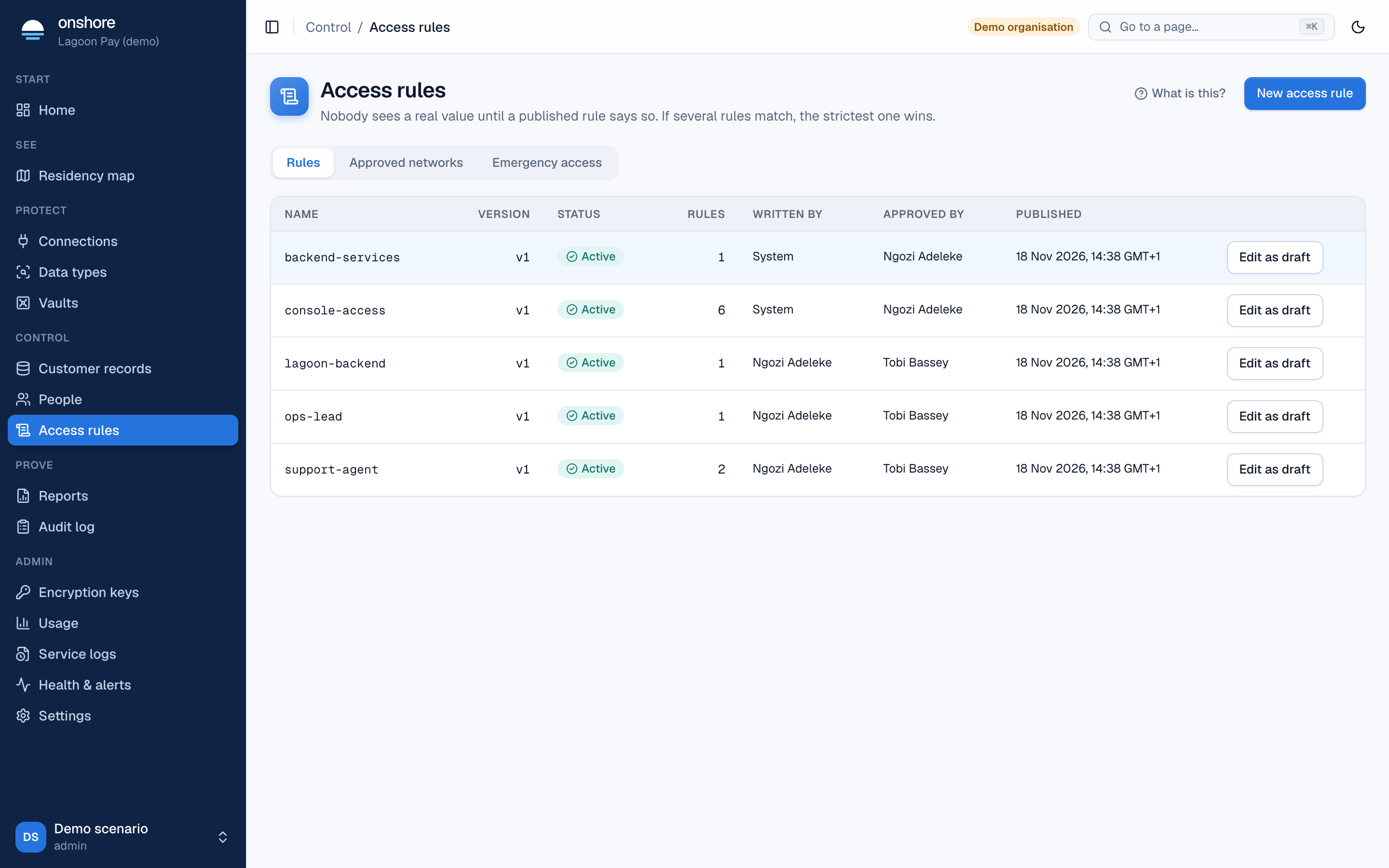
Read it back
The readable policy shows your rules in plain words. Check it says what you mean.
Test it in the simulator
In the simulator, choose a role or person, an action, a data type, a purpose, a network and an hour. It shows which rule decides and what it returns, or “No rule matched, so default deny applies.”
Save and publish
Select Save draft. A second admin publishes it: if you wrote the draft, you can’t publish it yourself. They select Review and publish.
Every version is kept, with who wrote and who approved it. Changes reach every service within seconds.
Approved networks
Add your office ranges, VPN or private links under Approved networks, with a name and a range in CIDR notation. A rule’s only from networks then limits reveals to them. Location from IP lookups is recorded, never trusted, because a VPN defeats it.
Emergency access
For an emergency outside the normal rules, a person requests emergency access (break-glass) to a vault, with a reason and a duration from 5 to 240 minutes. Another admin approves it. It ends on its own when the time is up, or can be revoked. Every use is flagged as break-glass in the audit log and the report, and sends a webhook.
To see what any one person can do right now, open them in People: their page lists every rule that applies.