Import existing data
New customers can be protected from day one. The real exposure is the values already in your database, its replicas and its exports. Import existing data loads them into the vault from a CSV, and gives you the same rows back with tokens in place of values.
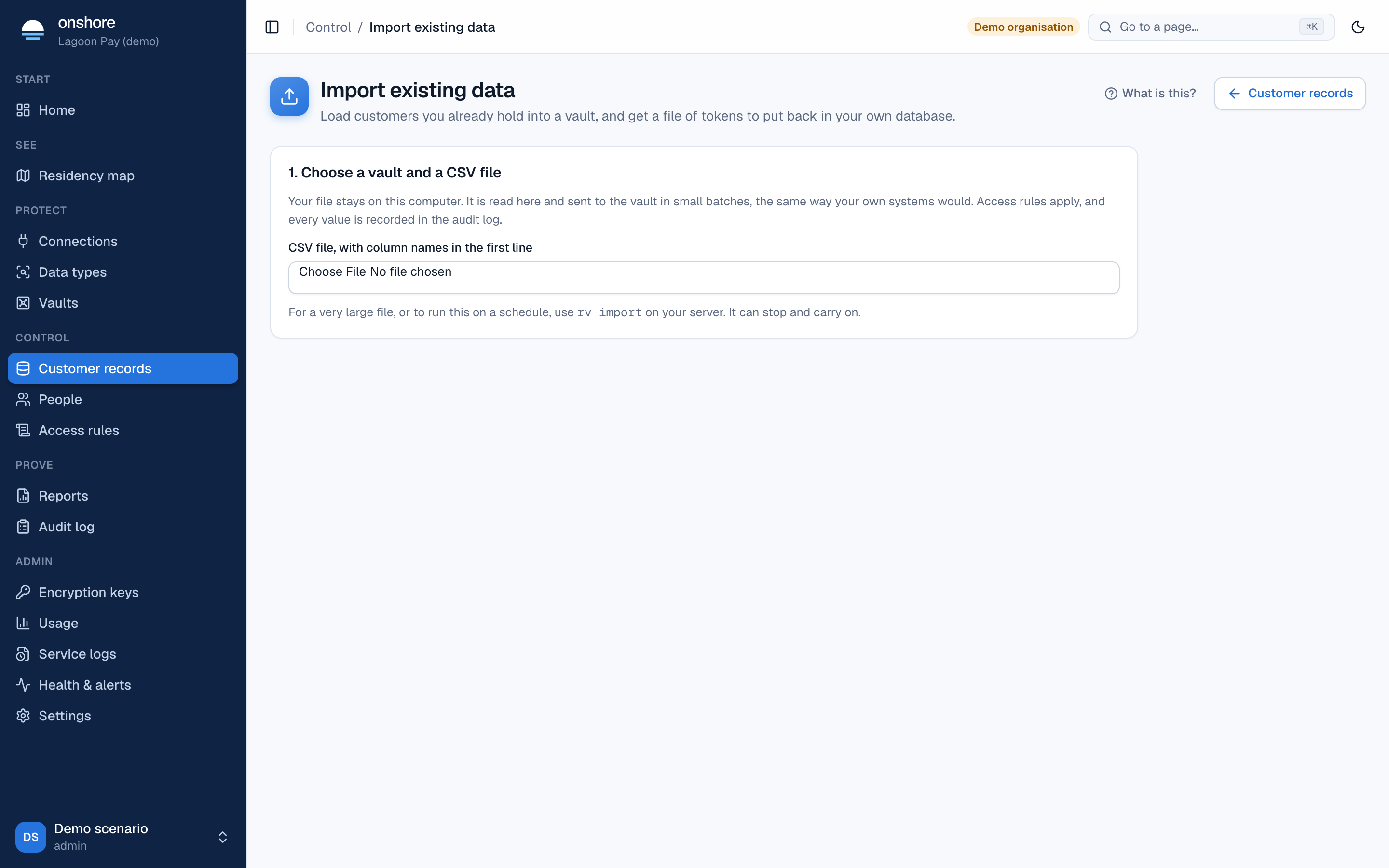
In the console
Best for smaller files. The file is read in your browser and sent in batches through the normal API.
Choose a vault and a CSV file
Column names must be in the first line. For very large files, use rv import (below).
Match your columns
For each column, choose Protect as a field, or Keep as it is. The first values are shown, partly hidden. Choose which column is your customer reference, so you can later find, export or erase one person’s data.
Check the file
Check the file checks every value against its field and your access rules. Nothing is stored yet. Download the problems if there are any: they name rows and columns, never values.
Import
Select Import. Keep the tab open until it finishes; you can pause.
Download the tokens file
You get the rows back with tokens. It exists only in the tab until you download it.
On a server
Better for large files; it can stop and carry on.
rv import -url https://vault.yourbank.example -vault v_live_… \
  -sa sa_migration -key-id key_01 -key-file migration.seed \
  -file customers.csv -map national_id=national_id,phone=phone -ref customer_id -check
Run it first with -check, which stores nothing, then without. It writes customers.csv.tokens.csv and customers.csv.errors.csv, both readable only by you.
Either way
- Access rules apply and every value goes in the audit log. There’s no back door.
- Your role or service account needs an access rule allowing
tokenizeorinsert. - Running the same file again is safe for “same value, same token” fields. Fields that give a new token each time would store values twice; the console warns about this.
Afterwards: replace the values in your database with the tokens, check your systems still work, then delete the original file.