People and roles
People lists everyone who can use Onshore: team members who sign in to the console, and service accounts your systems use to call the API.
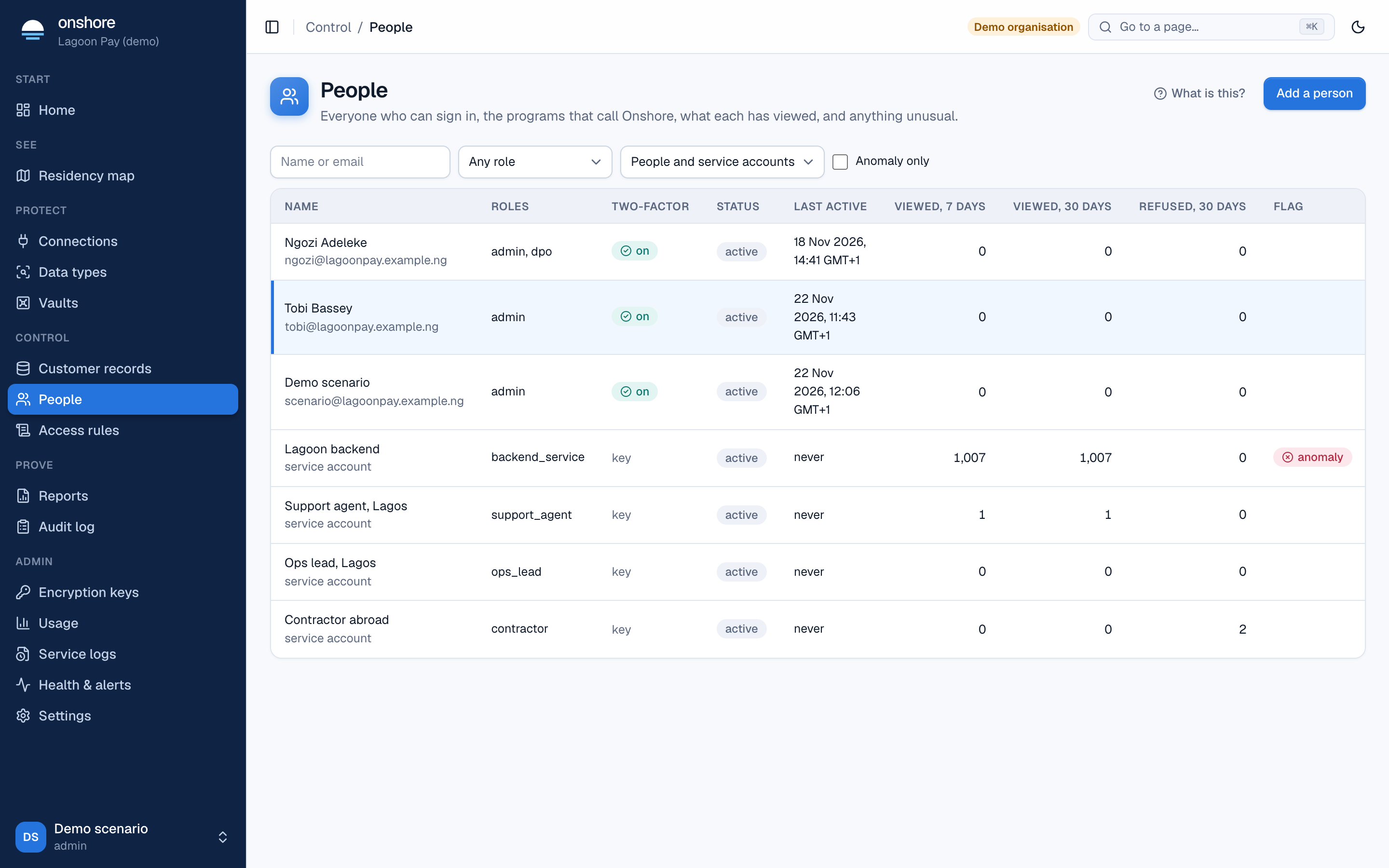
The table shows each person’s roles, whether two-factor is on, their status (active, suspended or removed), when they were last active, how many real values they viewed in 7 and 30 days, how many requests were refused, and any anomaly flag. Accounts added by single sign-on, SCIM or LDAP say so under the email.
Invite a person
Add
Select Add a person or service account, then Person.
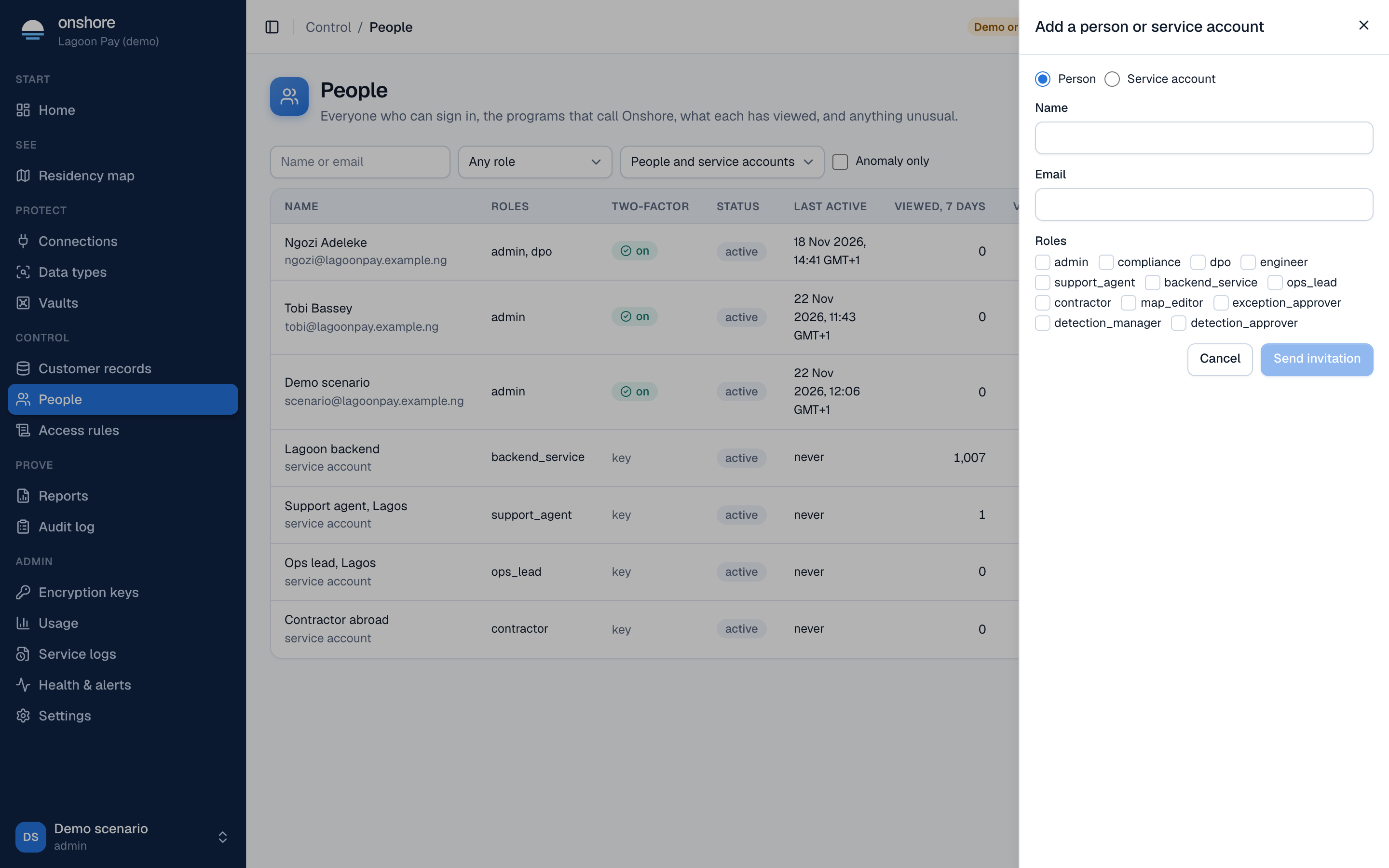
Fill in
Their name, email and roles.
Send the invitation
If email is set up, they get an invitation. If not, the console shows a link to pass on yourself. Invitations last 7 days. They choose a password and set up two-factor when they accept.
If your organisation uses single sign-on, SCIM or LDAP, people can be added automatically instead.
Add a service account
Service accounts sign API requests with a key pair; the private key never leaves your server.
- On your server, run
rv sa-keygento make a key pair. - Select Add a person or service account → Service account, give it a name and roles (usually
backend_service), and paste the public key. - Optionally add an IP allowlist, comma-separated.
See Authentication.
A person’s page
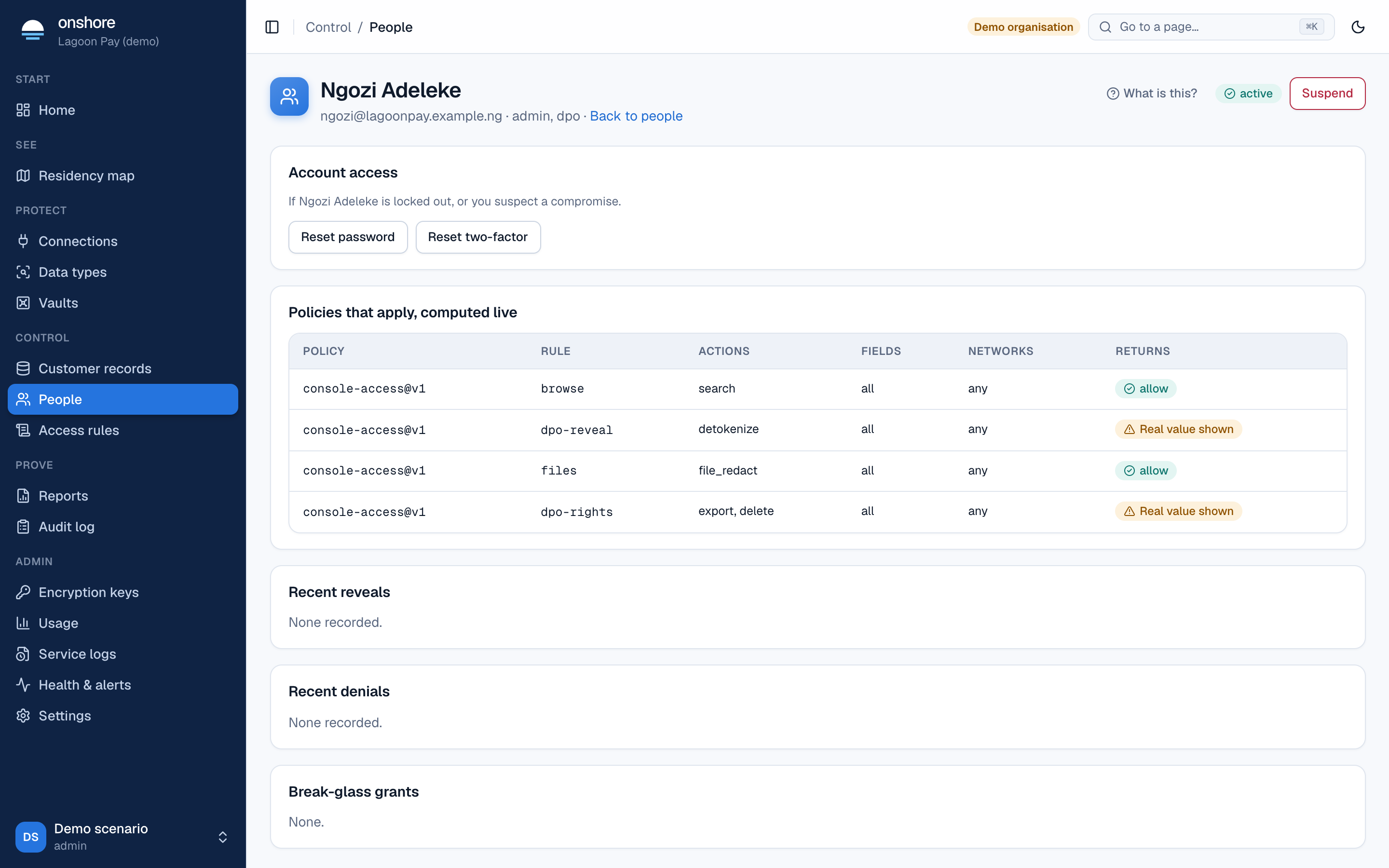
- Account access: resend or cancel an invitation, Reset password, Reset two-factor (when someone is locked out, or you suspect a compromise). These need another admin: nobody can do them to themselves.
- Policies that apply, computed live: every access rule that names this person or their roles, and what each returns. If none does, everything is denied.
- Keys: a service account’s keys, fingerprints, IP allowlists and last use. Revoke a key here.
- Change roles, suspend the person, or set an approved network.
You can’t suspend yourself or remove your own admin role.
Unusual access
Onshore learns how many values each person usually reveals. A reveal spike, many more reveals in an hour than usual, raises an alert on Home and the person’s page. Look into it, then select Acknowledge.
Roles
| Role | For | By default can |
|---|---|---|
| admin | Setting Onshore up | Configure everything. Sees no real values unless an access rule allows it |
| dpo | Data protection officer | Reveal real values with multi-factor sign-in and a purpose; export and erase a person’s data; redact files |
| compliance | Compliance and risk | See masked values with a purpose; read reports and the audit log; redact files; edit the residency map |
| support_agent | Customer support | Search records; see masked identifiers with a purpose |
| engineer | Engineering | Read configuration, connections and the map |
| backend_service | Your systems (service accounts) | Store values, insert records, search, redact files |
| ops_lead, contractor | Your own rules | Nothing until an access rule names them |
| map_editor | Residency map | Declare systems and flows, add fixes, request exceptions |
| exception_approver | Residency map | Approve exceptions, never their own |
| detection_manager | Data types | Create and edit your own data types |
| detection_approver | Data types | Approve data types |
“By default” means the two starter access rules every install begins with. You can change what any role sees in Access rules.
With groups to roles, your identity provider’s groups decide roles automatically.