Signing in
The console always asks for two things: something you know (your password, or your organisation’s single sign-on) and something you have (an authenticator app code, or a passkey). A password alone never opens the console.
With a password
Enter your email and password
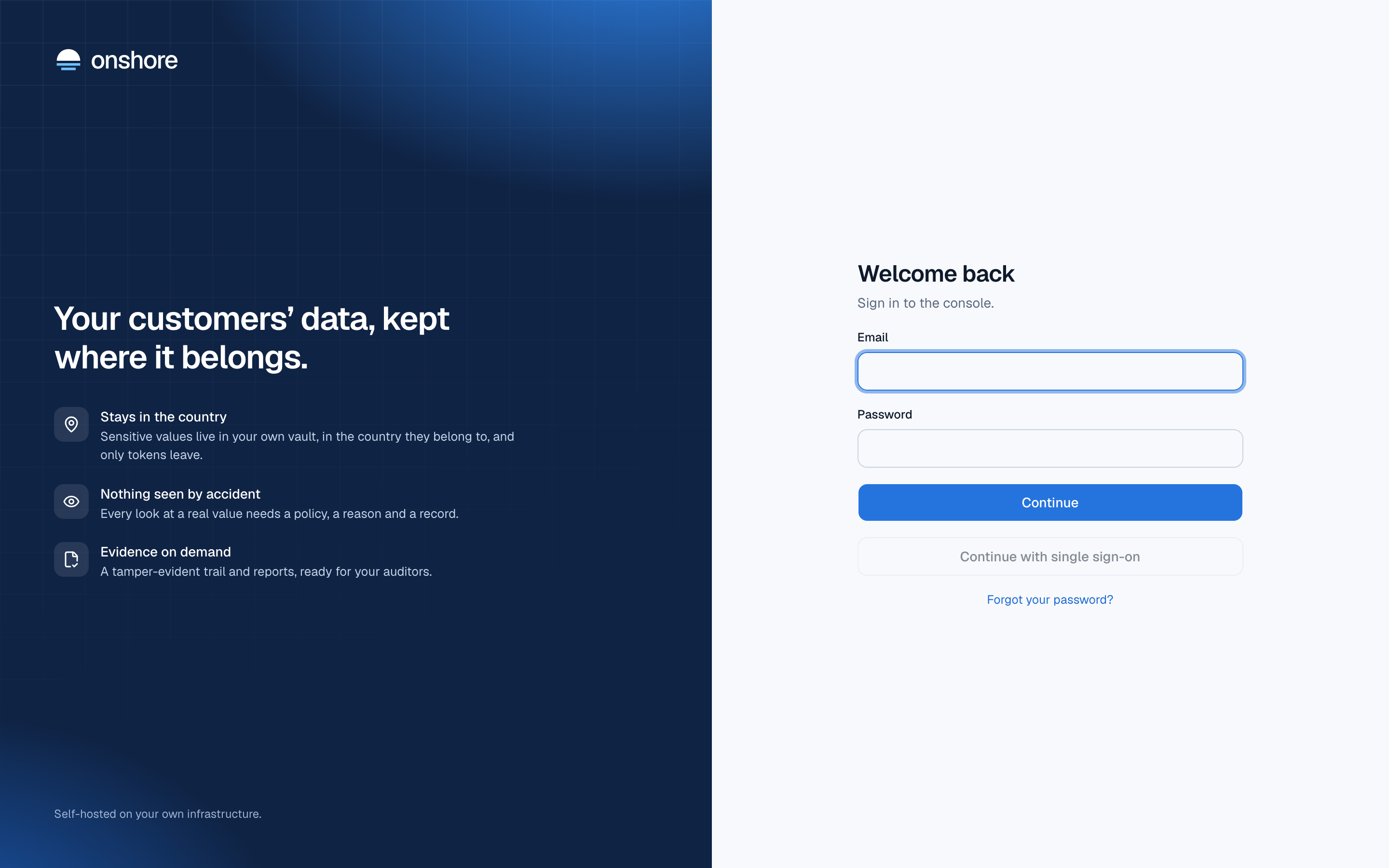
Select Continue.
Enter the 6-digit code from your authenticator app
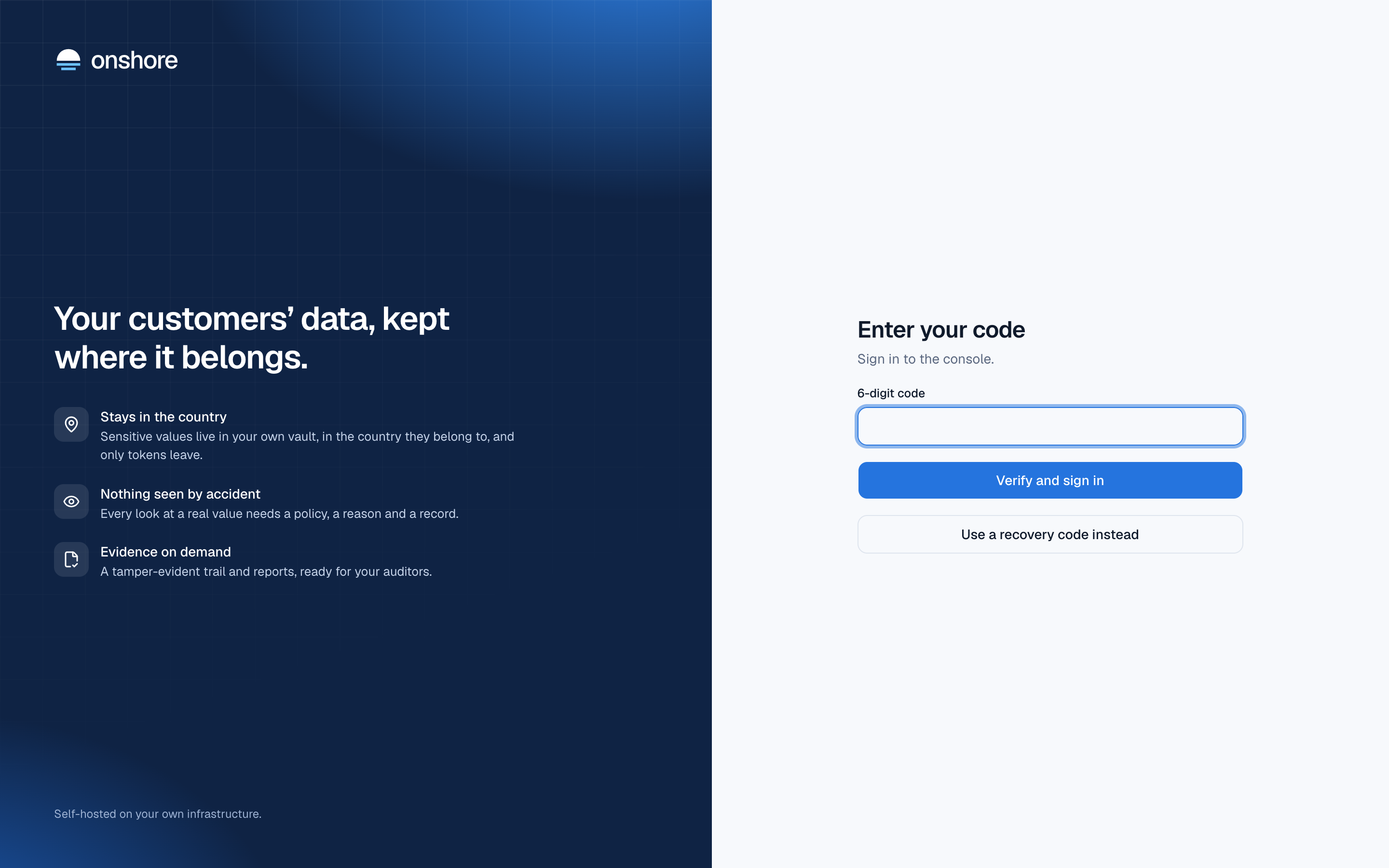
Use any authenticator app: Google Authenticator, Microsoft Authenticator, 1Password, Authy and others. Select Verify and sign in.
The first time
The first time you sign in, Onshore shows a QR code instead of asking for a code. Scan it with your authenticator app (or type the key shown under it), then enter the code the app shows. Two-factor authentication is required for everyone.
Right after that, you get ten recovery codes. Each one gets you in once if you lose your phone. They’re shown only then: download or copy them, and keep them somewhere safe, away from your phone.
If an admin created your account with a temporary password, you’ll choose your own password after entering your first code.
With a passkey
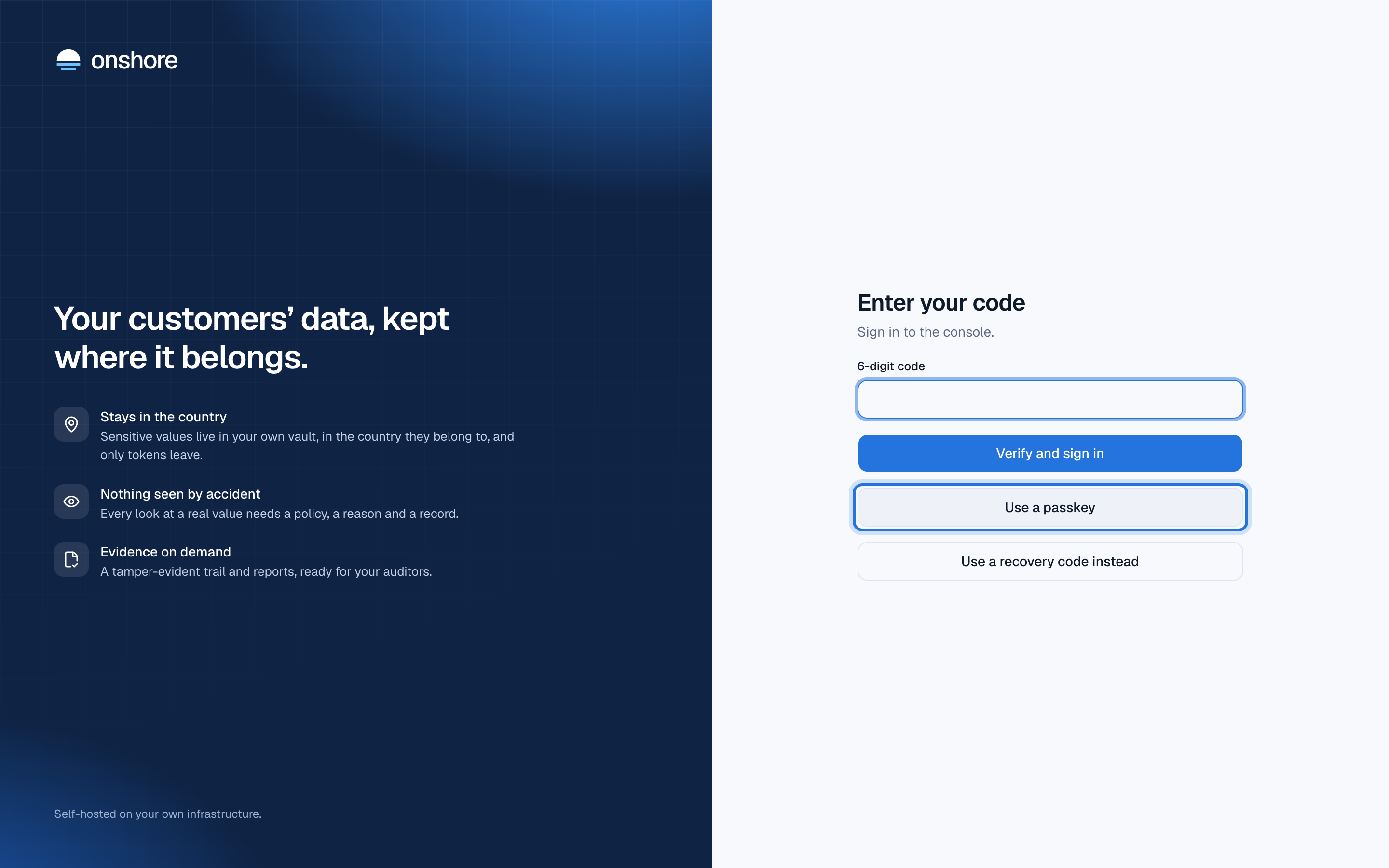
A passkey (or a security key such as a YubiKey) can stand in for the 6-digit code. It can’t be phished: your device signs only for this site. Add one in Settings → Sign-in; see Two-factor and passkeys.
At the code step, select Use a passkey and confirm on your device:
With single sign-on
If your organisation uses Microsoft Entra ID, Okta, Google or another identity provider, type your work email and select Continue with single sign-on. You’re sent to your provider to sign in, and come back signed in.
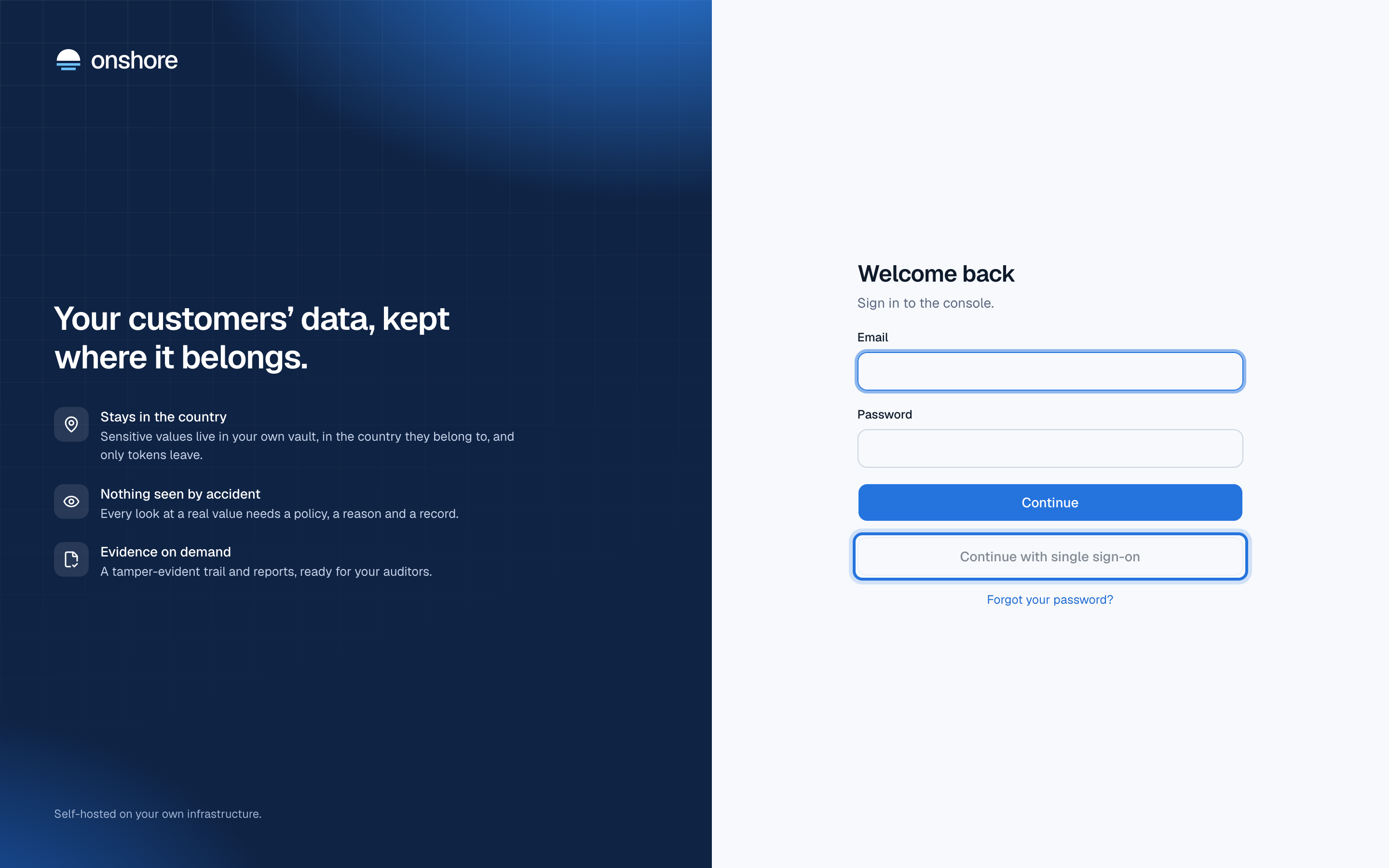
Your provider handles two-factor authentication. If single sign-on fails, the page says so: usually your admin hasn’t added you, or none of your groups gives you a role. See Single sign-on.
Staying signed in
You’re signed out after 15 minutes without activity (your installer can set 5 to 720 minutes with RV_SESSION_IDLE_MINUTES), and always after 12 hours, even when active. Changing your password signs you out everywhere.
Locked out?
| What happened | What to do |
|---|---|
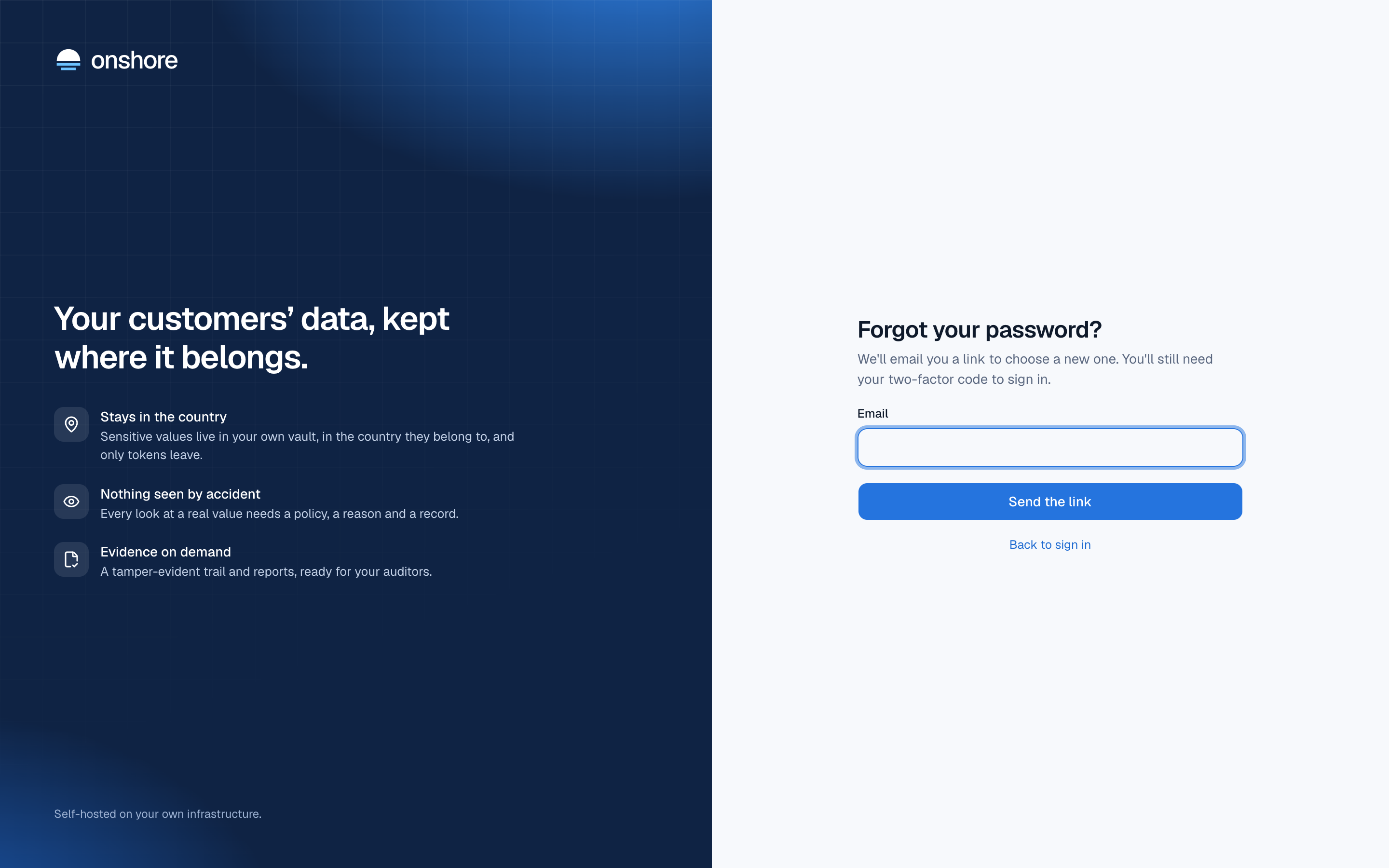
| Forgot your password | Select Forgot your password? on the sign-in page. A link arrives by email (if your organisation has set up email). You’ll still need your code |
| Forgot your password, and no email is set up | Ask an admin to use Reset password on your page under People. They pass the link to you |
| Lost your phone | Select Use a recovery code instead at the code step. Then set up a new authenticator in Settings → Sign-in |
| Lost your phone and your recovery codes | Ask an admin to use Reset two-factor on your page under People |
| Every admin is locked out | Someone with access to the server runs ./rv admin-recover -email you@company.example -reason "…", which prints a one-time link |
Links work once, are stored only as hashes, and expire: invitations after 7 days, password resets and recovery links after an hour. Admin resets need another admin; nobody can reset themselves. Everything is in the audit log.
Using a recovery code emails you a notice, and the console tells you how many codes you have left.